Online Solution

Big Discount

Unknown

Newbie Guide: How To Pick Your First Web Host

So you are ready to make your first dollar online right? Well the first thing you need to do is purchase your very own web hosting account. Unfortunately, picking the right web hosting account can be a really difficult task. Especially if you are not technically inclined at all, because all the different choices and options you have to pick from will make anybody’s head swim.

Luckily, I have a lot of experience with web hosting in my business. I currently have accounts with over 10 different web hosting companies. And I have had to deal with dozens more. So in this guide, I will show you all the considerations you need to go through to pick the perfect web hosting account.

What Type of Web Hosting Should I Get

The first question you need to ask yourself is what type of web hosting you should get. There are many different choices out there: Shared Hosting, Virtual Private Servers (VPS), Dedicated Servers, or even Reseller Hosting. If you have never created a website before then the choice is easy. 99 times out of 100 you should pick shared hosting.
With shared hosting, your website will share a single server computer’s resources with a number of other customers. It’s the most cost effective, but more importantly it’s the easiest solution to setup and get up and running quickly.
Only when you start getting lots of traffic to your website, should you consider moving to any of the other web hosting types.

What To Look For In A Web Hosting Company

Inevitably when newcomers look at web hosting, the first thing they look at is the price. This is a big mistake! My very first web hosting company that I used was a company called Dreamhost. I did not know anything about web hosting at the time, and I only picked them because they were offering an amazing discount at the time.
Dreamhost wasn’t terrible, and I stuck with them for awhile. However, they just grew too fast and weren’t able to support all their customers. My website’s starting going down more and more often and eventually I just became fed up with them and was forced to find a new web host.
So when picking a web hosting company, I really focus on two main things.
1. Reliability (Uptime)
2. Support
Reliability and uptime is pretty self explanatory. You want your website to be up 24/7 at all times if possible. Of course, there are always unforeseen things that can happen to any web hosting company, whether it be server failures or the like. But a good web hosting company will have a good team that can deal with these issues in a timely manner and most importantly communicate with their customers what’s going on.
Responsive support is another must have with any web hosting company. There’s nothing more frustrating and panic inducing then finding your website down one day, submitting a support ticket, and waiting hours (or even days) for someone to tell you what’s going on. Many of the better web hosting companies include a Live Chat function on their website so you can talk to someone within minutes. Also check if a company has a Twitter account and see how responsive they are to customer service requests.
Only after looking and Reliability and Support will I look at other things like Features and Cost. Honestly, most shared hosting plans pretty much offer the same types of features. Just make sure you know how many Add-on Domains and MySQL databases you are allowed to put on your account. And I prefer web hosts that offer the cPanel control panel since it’s easy to use and most web hosts use it.

How To Research The Best Web Hosting Company

Researching web hosting companies can be a time consuming and frustrating task. Mainly because there is a lot of worthless information out there. Searching on Google for a particular web host review is essentially useless because 95% of the posted reviews out there are driven by lucrative web hosting commissions instead of providing any actual value.
Beware of any website that shows a table of their Top 10 web hosts reviewed. It is very rare that anyone has tested this many web hosts and are giving them legitimate reviews. Plus, web hosting companies are known to boost commissions for webmasters who will bump up their web host in the rankings.
Instead of searching on Google, here is how you should find and evaluate a web hosting companies instead.
1.    Search on forums. The best web hosting forum is WebHostingTalk.com. But you can also find good opinions about web hosts on other more niche forums like the Warrior Forum (Internet Marketing) and Sitepoint. Forums are usually the best because you will usually get actual opinions (positive and negative) that aren’t influenced by an affiliate commission.
2.    Monitor their twitter account. Locate any web hosting companies’ official twitter account. Then monitor the @replies that other Twitter users are making. Are there lots of users complaining about downtime? Or do they sound happy in general.
3.    Contact their support. The best way to test out a web hosting support is to try them out. If they have a Live Chat, test it out and see how long it takes for someone to respond. Or send a support ticket and see the same.
4.    Ask a friend. Do you know someone who already runs their own website? Why not ask them what they think of their web hosting provider.

Which Shared Hosting Do I Recommend

I currently have 4 different shared web hosting accounts. Bluehost, Inmotion Hosting, Site5, and Hostgator. However, the one I recommend most often is Hostgator. I’ve been with them since 2008 and I couldn’t be happier with them. Not only is this blog Misterfong.com hosted with Hostgator, but it also the web host of choice for sites likeTrafficGenerationCafe.com, BasicBlogTips.com, Blokube.com, BenSettle.com, John-Carlton.com among others.
While not the cheapest web host out there, their uptime is excellent. This Pingdom monitoring widget show’s a real time look at the uptime for my site over the past 30 days.

Plus they have one of the best support staffs I’ve had the pleasure of dealing with. All I need to do is use the Live Chat and I can talk to a real live person in just a couple of minutes. See this Hostgator video review I did, for more details.


Special Deal For Mister Wong Readers
Do technical terms like FTP or CPanel or MySQL databases scare the crap out of you? Does it all sound like a bunch of technical mumbo jumbo?

Well if this is the situation you are in, don’t let that get you down and prevent you from making your first dollar online. Instead, take advantage of my free WordPress installation service.

I will personally setup a WordPress blog on your brand new web hosting account with my favorite set of WordPress plugins on it at no cost to you.

All you need to do is order your own Hostgator web hosting plan using this link and enter in the coupon code MISTERFONG which will save you an additional 25%. Then contact me at chris [at] misterfong.com and I will setup your WordPress blog for you within 24 hours.

Are ready to start making your first $1 online? Then don’t procrastinate and purchase a web hosting account and start your very first blog right away.

Also see :

Build Backlinks – 14 Easy Ways


Thanks Guys.


Read More
Unknown

Build Backlinks – 14 Easy Ways


Why haven’t you heard of these link sources before? You have. But you’ve probably been told they are a waste of time by your Web developer, who claims these big, popular sites aren’t us33eful for Google optimization.
The reason is that most powerhouse social media sites like Facebook and YouTube put a small piece of code called ‘the no follow’ tag into most areas of their site. As the name implies, the ‘no follow’ tells search engines: if someone tries to build backlinks to their site from here, don’t follow it. Instead, ignore it.
This was and is done to prevent spammers. If you didn’t have the ‘no-follow’ tag, spammers would create thousands of Facebook profiles, LinkedIn profiles, and YouTube accounts just to link those sites back to their website. The ‘no-follow’ breaks the connection you are trying to make between one website and the next, defeating the purpose of a link from the perspective of Google optimization (people can of course still click the link and visit your site directly).
But it’s a fallacy that all social media sites have no-follows. In fact, many sites provide juicy link opportunities. You just need to find them. And we did.
These are all real links, and are entirely legitimate and approved for optimization by Google.
We recommend creating profiles for key employees and founders. Be sure to add custom links with anchor text (“anchor text” is the actual words that comprise the link23. You want these to be search terms for which you want to be found, not your name or company name. This anchor text helps Google determine what other sites think your site is about) . Your profile link on Google Profiles will be devoid of a no – follow and you can add much additional information along with the link including videos and photos. These profiles are especially important now that Google Plus has launched.
Create a local business listing for all of your offices. Use target keywords in the profile and description fields. This is a great source that is devoid of no – follows and has high visibility in the search results. A Powerful, easy, and effective place to build backlinks.
Build a company profile, as well as individual profiles for key employees and founders. Select “Other” when setting your first web site link to create custom anchor text. Also take advantage of the two additional links available, but no custom anchor text is allowed.
Digg is great for traffic generation, and while not the powerhouse it once was, is still a large community. Plus, you can submit articles you want to promote, and links to those articles are followed by search engines.
Even if you’re not a check-in maniac, you should set up Foursquare profiles, as the link you associate with your account is followed.
An article submission site in the Digg vein. Very active with highly engaged users. The links you submit will be devoid of the no – follow attribute.
Create as many Squidoo “lenses” as you like, about any topic. A lens typically consists of a blog post-esque article, with links to other recommended sources.
An article discovery site that’s exceedingly busy and popular. Drives significant eyeballs all around the Web. Submitted links are followed.
Even if you don’t know a burger from a baba ganoush, create a profile on Yelp. The link in your profile is followed. Links in comments, however, are no-follow.
This local business portal allows you to create a profile for your business and is devoid of the no – follow attribute. Use target keywords in the profile and description fields, and anchor text if possible.
Create a custom YouTube channel for your company . While comments and any links you include in your description will have the rel=”nofollow” attribute, YouTube gives you a link in your profile that is devoid of no – follow.
Article submission is becoming a bit dated in terms of Google optimization and building backlinks. Large content repositories like this and Hubpages (below) may have been devalued somewhat in Google’s most recent “Panda” overhaul of its algorithm. But you can use this site to recycle blog posts that you have published elsewhere, and pick up an additional link.
Write articles on topics of your choosing, with custom links and anchor text . Significant link potential here. Devalued a bit in Google’s new Panda update.
Also in the Digg and Reddit category. You get a link in your profile , and you can submit news stories and articles. All article links are followed.
When You Build Backlinks Be Complete 8
When it comes to Google Places, Local Listings, LinkedIn and basically all your social pages and profiles, a complete profile is much more powerful than an incomplete one. It’s just more information that search engines can use to figure out what you and your website are about. So fill out all the details and include your main keywords in those profiles (for example, ‘we are a landscape company from Dallas specializing in large commercial and educational institution projects’).
All of this takes a bit of time and grunt work, but if you do it Google will have a richer collection of sites pointing back to yours in a consistent, powerful way.

See Also :  
What is affiliate Marketing & How does it works ?

Thanks Guys if you did like this post plz share thankss.


Read More
Unknown

How To Blogger Sitemap To Google Webmaster Tools


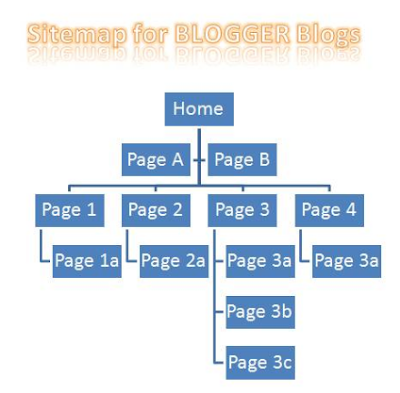
blogger site map
Blogger site map

In my previous post I told you how to add a site or blog to Google Webmaster Tools and in the end of the post I said that I will show you how to submit sitemap in Google webmaster tools. So in this post I will show you how to submit blogger sitemap to Google webmaster tools. It is a very important step to submit a sitemap because it helps Google to crawl your links and index them. It doesn't mean that only submitting sitemap is important, robots txt optimization, meta tags optimization, blog title optimization and seo basics are also more important. 
Submitting sitemap in Google webmaster tools is the second most important step towards better seo, but in blogger it isn't simple like websites as in websites the sitemap exists at http://www.mywebsite.com/sitemap.html but in blogger there is no sitemap like that so you have to use anyone of the below links to find your sitemap:

If your blog has below 500 posts use this sitemap:

atom.xml?redirect=false&start-index=1&max-results=500

If your blog has more than 500 posts use this one:

atom.xml?redirect=false&start-index=501&max-results=500 

How to use above links? Just paste any of the above link after your blog link say that my blog has below 500 posts so I will use atom.xml?redirect=false&start-index=1&max-results=500 as http://101helper.blogspot.com/atom.xml?redirect=false&start-index=1&max-results=500.

So lets begin follow below steps to submit your blog sitemap to Google Webmaster Tools.

Step 1:  Go to Google webmaster tools.

Step 2: Choose your site by clicking it.

Step 3: In the Site Dashboard tab click on sitemaps.
Dashboard


Step 4: Click on Add/Test Sitemap button at the top right corner:
Test Sitemap
Step 5: Just after your blog url paste the sitemap link shown above, make sure to use the right one otherwise it won't work. If your blog has 500 or below 500 posts then use the first one otherwise use the second one.

Step 6: Click on Submit Sitemap and refresh the page.

It will take an hour or 5 hours or a day to show your site's data. After submitting sitemap just leave it to Google. Once your data is updated you can check stats of your indexed urls and crawl errors. After approval it will look like the sitemap shown in below image:


If your blog has more than 1000 or 2000 posts you can use THIS online tools to create a new sitemap for your blog.

If you have any questions related to this post feel free to ask me by leaving a comment below. Hope you like this post. Support 101helper.blogspot.com by sharing it. Thanks for visiting Online solution.

See Also : - 


Read More
Unknown

BlogSpot SEO Advanced SEO: Robots.txt, Meta Tag & More

Advanced Seo Options for Blogspot


Today seems to be a happy Blogger day for Blog Spot user as Blog Spot added some of the advanced SEO
options for Blogger blogs. We will dive into all the new feature in details after a break but let me start with few important relevant talk.
Whenever we pitch about Blog Spot Vs. WordPress, we always give WordPress an edge in the terms of SEO. By adding new SEO features in BlogSpot, Google have fixed the SEO difference by a great extent. Though, this is not going to be “The changes”, which will make me suggest you to stick to BlogSpot for Professional Blogging. But, all the new changes are undoubtedly deserve an applause as after years, BlogSpot bloggers got much-needed SEO love.
So, let’s not waste our time and learn about all new features and how to use it.


How to Enable BlogSpot Advanced SEO settings?

Login to your Blogger dashboard and under settings > search preference you will find all the new SEO options which are added by Blogger team. You have to enable all the settings one by one, and my suggestion is to read this guide seriously else a wrong settings (BlogSpot Robots.txt), may lead to complete de-indexing of your blog.

I don’t mean to scare you, but all I’m saying is it’s time to get serious as Google wants to take SEO very seriously. Period!.
In this iteration, here are new SEO features added by Blogger team:
  • Description meta tag:
  • Custom 404-page message
  • Custom redirects (Redirect 404 pages to any page on your blog).
  • Custom robots.txt
  • Custom Robots header tags
  • No follow tag, open link in new tab

Lets Dive into World of BlogSpot Search preference settings:

Lets, look into all the feature one by one and my suggestion implement it on your blog for better search engine optimization of your Blogger blog.

Lets Dive into World of BlogSpot Search preference settings:

Lets, look into all the feature one by one and my suggestion implement it on your blog for better search engine optimization of your Blogger blog.
 Description Meta tags:


This is where you will be explaining what your blog is about. An informative description within 150 character will help readers to understand about your blog and will help you to get more click from search engine. Also, from SEO perspective, I would suggest you to use your main keyword here in BlogSpot meta tags description. For ex:
File Converter is a Blogging hub for Bloggers and Internet marketers to learn about tricks of Blogging, WordPress, Affiliate marketing, SEO and how to make money online.
Make sure you explain about your blog within 150 characters, as search engine ignore characters after 150. Once you enable this feature and added meta tags after search engine bot recrawls your site, search engine will show your meta description like this in search engine:

 Custom 404 message: 


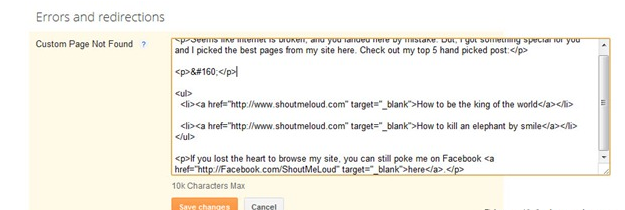
 A 404 page is usually a mistyped pages or a visitor land on a page, which doesn’t exceed. This custom 404 message will let you create the custom HTML message, which you can display on your Blogger 404 pages. Now, it’s time for you to use your creativity and design something awesome.
 Here is one example, HTML message which I have created, and you can change the link and text to spice up your 404 page on BlogSpot.


 Custom redirects:

 This is very useful when any 3rd party site linked to your site and added a link that doesn’t exist or if you remove a page and want to redirect the traffic. You can use Google Webmaster tool to find all such 404 pages and set the redirection. It might be a little lengthy process, but in some cases it is very useful to tap the missing traffic and convert them into real traffic.

 Nofollow/Open in new tab:


Before, I go into detail of this post, my suggestion is to read my post on Bounce rate, and that will give you enough idea about why opening external links in the new tab is important. Now, whenever you link to a site from the post editor, it will give two new options: Add the nofollow attribute and Open in new tab.
If the word, nofollow sounds like a rocket science to you, read my post on why you need to add nofollow tag to a link. Earlier, we used to add nofollow link attribute using HTML, but this new one click link addition will make the task very easier. My suggestion for you is to use nofollow link attribute only when you have to link to irrelevant domains and pages that you don’t trust.

Understand Dofollow - Nofollow 

 or example: use it, when you are writing about some anti-hacking trick, and you have to link to hacking sites for giving examples.

 Robots.txt for BlogSpot:

 Well, this is one part of new BlogSpot SEO setup, which I want you to use it carefully. A wrong, settings may lead to deindexing of a big part of your site. A Robots.txt file is used to stop search engine bots from crawling the “Not so important” part of your blog. For example, Search pages, archive pages and so on.  If you are new to Robots.txt, this video by Google Engineer, Matt Cutts will give you enough basic info about BlogSpot robots.txt file:

 In nutshell, I suggest you to use Robots.txt to point to your sitemap URL and control No-indexing by noindex tag in custom robots meta tags. For more information, read official page on BlogSpot robots.txt. I will cover a detailed info on Blogger robots.txt in coming days.

 Custom robots header tags:


One much needed feature for SEO of your BlogSpot blog, though it looks like little confusing but this guide from Google will again try to explain everything in simple words.
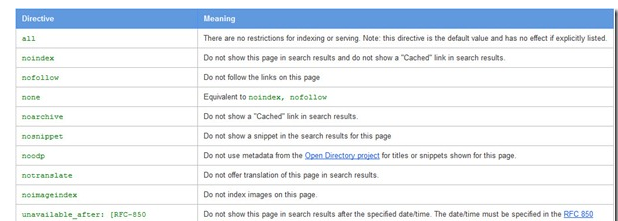
Here is an image, which explains all the directives under Blogger custom Robots header tag:


Robots meta tag and description is also available on single post, which makes it more search engine friendly. Specially, I liked the idea of Unavailable_after directive, which will help you to automatically deindex news post which usually expires after some time.
Well, my suggestion for every BlogSpot blogger is to get a custom domain and enjoy the power of new BlogSpot SEO and drive more traffic to your blog post. If you have any query regarding above Blogger new search preference option, ask via comment.  If you find this post useful, don’t forget to share and +1 this post.

See Also :-


Read More
Unknown

How to Remove Backgrounds from Photos without Photoshop

Photoshop
Photoshop
Adobe Photoshop contains tools like the background eraser and an extract filter to help you quickly erase complicated background images from digital photographs.
Want to do something similar but without Photoshop ?
 Fotoflexer
Fotoflexer
FotoFlexer
fotoflexer

Just upload your picture to FotoFlexer, an online photo editor, and open the Geek tab. There you’ll find an intelligent tool called "Smart Scissors" that works much like the Magnetic Lasso selection tool of Photoshop.
Draw a rough boundary around the image that you want to separate from the background and you will notice that "Smart Scissors" magically snaps the curves to the nearest edge (see screenshot on the right).
Once satisfied with the selection, click "Create Cutout" and you’re done.
You can use this free FotoFlexer service to extract picture of a particular person from some group photograph or you want to merge two photos – cut a portion from the first image using Smart Scissors and place in over the second picture.
The cutouts can be saved as JPGs or a PNG so I guess it maintains the transparency as well. Have fun.

Read More
Unknown

Here's how to get Windows 10 for free -- still

People who assistive technologies still quality for the free upgrade, though Microsoft doesn't ask for any evidence that you actually use such tools


Microsoft hasn't yet closed the door all the way for those in search of a Windows 10 freebie.
You can still get your hands on a no-cost upgrade to Windows 10 by turning to a page for people who use assistive technologies.
Windows 10 had been a free upgrade to Windows 7 and 8.1 users. But that deal ended Friday, at least for most people.
You qualify for the free upgrade if you use assistive technologies, which include such features as a magnifier to better see the screen, a narrator to read text aloud, keyboard shortcuts and an on-screen keyboard. Such tech is "designed to provide additional accessibility to individuals who have physical or cognitive difficulties, impairments, and disabilities," according to Microsoft.
Following the trials and tribulations of Windows 8, Microsoft has been working hard to coax people to jump to Windows 10. The free upgrade offer for users of Windows 7 and 8.1 was a huge part of the company's strategy to push Windows 10. But as of Friday, people must now pay $119 for the Home edition or $199 for the Pro edition -- with the exception of assistive tech users.
Here's how to get the upgrade at no charge:
From your Windows 7 or 8.1 devices, go to the webpage entitled " Windows 10 freeupgrade for customers who use assistive technologies." Click on the Upgrade now button. Run the executable file to install the upgrade.
Microsoft then displays a series of screens that take you step by step through the set-up process. Follow the screens until Windows 10 is comfortably nestled into your device.


At no point during the upgrade does Microsoft ask for proof that you actually use any of the assistive technologies. So the upgrade seems to be accessible to any Windows 7 or 8.1 user who still wants to get Windows 10 for free. Apparently, you can let your conscience be your guide, though Microsoft hopes otherwise.

 "As we shared earlier, we've extended the free upgrade offer for those who use assistive technology," a Microsoft spokeswoman told CNET. "That said, it is not intended to be a workaround for people who don't use assistive technology and who missed the deadline for the free offer."
Microsoft has not announced a deadline for the free offer for users of assistive technologies, so those of you who still want Windows 10 should grab the freebie while it lasts.

See Also : 


Read More
Unknown

Make Money Online With a Website

You can make money online using the same principles in almost any niche, but you have to know that times have changed. Now, don't let that discourage you. Let it be the motivation for education on what works today.

Most people don't realize how much has changed, so they waste time on techniques that no longer work. For example, ranking a website on Google is one of the biggest misunderstood processes online.
You can still make money online today, the biggest difference is you have to stand out amidst all the noise.
That means you want to bring a unique aspect to a particular topic and/or aim to solve a problem that you know people in that niche have. That's always a good way to approach a site.
Then it takes time to build up traffic through Google, social media, YouTube, a podcast (here's mine), etc. I should emphasize that you don't have to do everything at once. Start with one platform (YouTube, for example) so you don't overwhelm yourself.
And if you're looking for this to happen overnight and not do the work, you are on the wrong site and in the wrong frame of mind. 
The bottom line is you have to enjoy the journey and stay committed -- otherwise this will not work and you will find yourself frustrated.

Don't Forget This Important Lesson

Remember business is about PEOPLE. You have to build a site that connects with them by building trust and credibility. I discuss why I believe many sites fail in the video below...

More Articles About Making Money on the Internet

Make Money With Affiliate Marketing 
Even if your site is just for information purposes only, you can STILL make money by affiliating yourself with other company websites and linking to their products.
Making Money With Google AdSense
Get paid when people click ads on your website. It's free!
Make Money With Spreadshirt - A Fun Monetization Model
Discover how you can earn passive income selling custom shirts, mugs, hats, and more without creating or shipping the products.
A Guide to Making Money With Clickbank
Clickbank is a digital goods affiliate program that can earn you a lot of money because of what they pay in commisisons. Take a look at this getting started guide.
Make Money With Amazon's Affiliate Program
A very detailed guide on how to get started and earn with the Amazon Associate Program. 
Different Ways to Make Money on the Internet
If you're looking to make money online but need some ideas, this article will point you in the right direction.
Earn Residual Income Setting Up Websites for People
Who doesn't need a website today? You could earn a lifetime of residual income creating or setting up websites for people who need them.
Sell Your Own Custom Merchandise with Zazzle
Learn how you can make money selling your own custom designs on different products (shirts, bags, mugs, etc.)
Make Money as a YouTube Partner
Discover how to make money with your own YouTube videos.
Create an eBay-Like Auction Website 
It would be hard to compete with eBay's success but you can still create a successful auction website to allow others to bid for goods.  Learn how to get started.
How to Sell Your Items on eBay 
Got something to sell?  Create a website and promote your eBay store!
Generate Profits by Creating an eBook
An ebook can be a great money maker, no matter if you sell it or give it away.  Learn how to create one!
Building an Online Store or Shopping Site 
Don't make the same mistake many beginners make when deciding to create an online shopping site.  Learn the best way to do it here.
Sell Your Own Product 
This is the most common method of revenue generation on the web.  You control every aspect of your business when you sell your own product online, however, creating your own store can be costly and time-consuming to setup.

See Also :
If you liked this, please share. Thanks!


Read More

Search This Blog

//]]>